
🕒 This guide takes 15 minutes to embed a "Pay with ETH" checkout on your app.
CheckoutWithEth embeds a component on your page that accepts ETH payments on Ethereum (or Goerli).
This component also handles:
- Connecting the payment wallet
- Prompting the payment wallet to switch chain, if necessary
- Informing the payment wallet they have insufficient funds
Paper requests the precise amount of funds on the correct chain for the easiest buying experience.
Competing alternatives often require the user to send funds to an arbitrary address, resulting in buyers sending insufficient funds or sending on the wrong blockchain.
Example
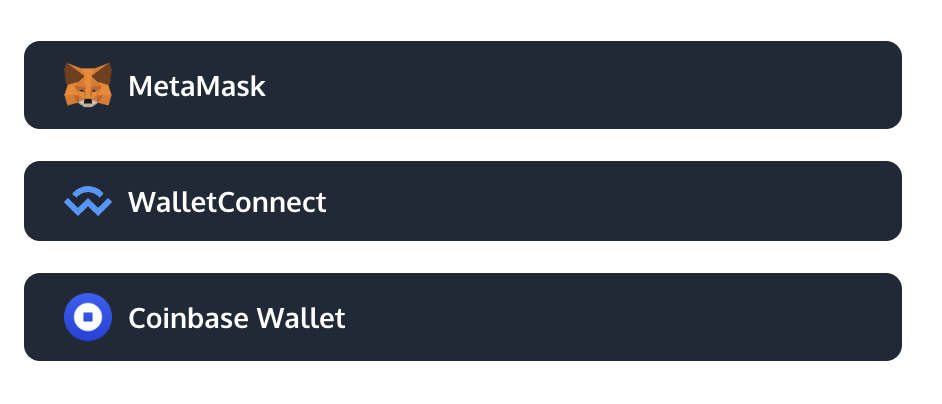
The user is prompted to connect their payment wallet. This step is skipped if they've already connected their wallet to your app since this connection is established on your domain.
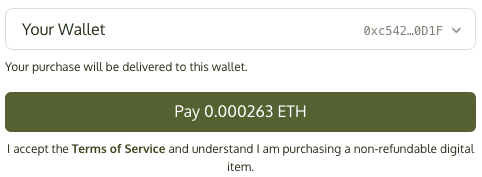
The user is then prompted to review their purchase, accept the Terms of Service, and complete their payment.
This SDK is available in ReactJS and JavaScript.
Integration: ReactJS
- Install the ReactJS SDK with your preferred package manager.
npm install @paperxyz/react-client-sdk-checkout-with-ethyarn add @paperxyz/react-client-sdk-checkout-with-eth
- Copy your API key from the Developer Dashboard: Developers page.
- When a buyer wants to make a purchase, create a
configsobject (see props table below). You will provide some buyer information and configure behavior via this API. - Instantiate a
PaperSDKProviderprovider to store Paper-specific properties. - Within the provider, instantiate the
CheckoutWithEthcomponent to render this component. Pass the SDK Client Secret to this component.
Example code
import { CheckoutWithEth } from "@paperxyz/react-client-sdk-checkout-with-eth";

<CheckoutWithEth
  configs={{
		contractId: 'CONTRACT_ID',
    walletAddress: "0x...",
  }}
	onPaymentSuccess={(result) => {
    console.log("Payment successful.");
  }}
/>
CheckoutWithEth props
CheckoutWithEth props| Name | Type | Description |
|---|---|---|
| configs * | string | A list of configs to create your eth checkout element. Fields are the same as the ones found in theCreate Checkout Elements Client Secret API. |
| onPaymentSuccess * | (props : { onChainTxReceipt: TransactionReceipt; transactionId: string; }) => void | This method is called after the payment has succeeded on-chain. |
| onPriceUpdate | ({ Where PriceDetail is | This method is called when the price is updated or loaded for the first time. This summary is helpful to show a granular price breakdown.
|
| locale | enum Valid values: en, fr, es, it, de, ja, ko, zh | The language to show text in. Defaults to en. |
| receivingWalletType | enum Valid values:
| Defaults to The wallet type of the user wallet receiving the NFT to render the appropriate wallet icon in the component. |
| suppressErrorToast | boolean | Defaults to If This can include cancelling transaction, pending transactions etc. |
| showConnectWalletOptions | boolean | Defaults to If |
| payingWalletSigner | ethers.Signer | If provided, the component will request funds from this signer. |
| onWalletConnected | (props: { userAddress: string, chainId: number }) => void | This method is called when a payment wallet is connected. |
| onPageChange | (currentPage: CheckoutWithEthPage) => void | This method is called when the buyer transitions between pages. |
| onError | (error: PaperSDKError) => void | This method is called when an error is encountered. |
| setUpUserPayingWalletSigner | (args: { chainId: number }) => void | This method is called before the payingWalletSigner is asked to pay with the chainId that the payingWalletSigner is supposed to be on. |
Integration: JavaScript
- Install the JavaScript SDK with your preferred package manager.
npm install @paperxyz/js-client-sdkyarn add @paperxyz/js-client-sdk
- Copy your API key from the Developer Dashboard: Developers page.
- When a buyer wants to make a purchase, create a
configsobject (see props table below). You will provide some buyer information and configure behavior via this API. - Call
createCheckoutWithEthElementto insert the iframe on your page. Pass the SDK Client Secret to this component.- If you don't provide
elementOrId, this call returns an iframe element for you to insert into your page.
- If you don't provide
Code example
import type { createCheckoutWithEthElement } from "@paperxyz/js-client-sdk-checkout-with-eth";

// Assume a container exists:
//
//		<div id="paper-checkout-container" w="380px" />
//
const iframe = await createCheckoutWithEthElement({
  configs: {
		contractId: 'CONTRACT_ID',
    walletAddress: "0x...",
  }
  elementOrId: "paper-checkout-container",
  payingWalletSigner,
  setUpUserPayingWalletSigner,
  receivingWalletType,
  onError(error) {
    console.log("Payment error:", error);
  },
  onSuccess({ transactionId }) {
    console.log("Payment successful.");
  },
});

// Alternatively, insert the iframe programmatically:
//
//		const iframe = createCheckoutWithEthElement(...)
//		document.getElementById('paper-checkout-container').appendChild(iframe);
Props
| Name | Type | Description |
|---|---|---|
| configs * | string | A list of configs to create your eth checkout element. Fields are the same as the ones found in the Create Checkout Elements Client Secret API. |
| payingWalletSigner * | ethers.Signer | The connected wallet who is going to be paying the ETH required for the checkout |
| locale | enum Valid values: en, fr, es, it, de, ja, ko, zh | The language to show text in. Defaults to en. |
| options | object | Customize component styling. See Customization. |
| setUpUserPayingWalletSigner | (args: { chainId: number; }) => void | Promise<void> | If provided, the callback will be called before asking buyers to pay with the Developers must make sure that users are on the right chain (Goerli for testnets, Eth for mainnets) or risk buyers sending funds into the void. |
| receivingWalletType | enum Valid values:
| Defaults to The wallet type of the user wallet receiving the NFT to render the appropriate wallet icon in the component. |
| onError | (error: PaperSDKError) => void | This method is called when anything wrong happens during the checkout process |
| onPaymentSuccess | (props : { onChainTxReceipt: TransactionReceipt; transactionId: string; }) => void) | This method is called after the payment has succeeded on-chain. |
| suppressErrorToast | boolean | Defaults to If false, any error thrown will be displayed in a toast. |
| onLoad | () => void | This method is called when the iframe loads |
| elementOrId | string | HTMLElement | If provided, the iframe will be appended this element. You can pass in the DOM element or the A minimum width of 380px is recommended. |
Customization
The optional options argument allows you to customize the component's styling. All customization fields are optional.
options object
options object| Name | Type | Description |
|---|---|---|
| colorPrimary | string In hex, e.g. #cf3781 | The primary brand color for buttons and links. |
| colorBackground | string In hex, e.g. #cf3781 | The background color of the page. |
| colorText | string In hex, e.g. #cf3781 | The color for text on the page and UI elements. |
| borderRadius | number In px, e.g. 0 for sharp corners, 12 for rounded corners, 24 for pill shape | The roundness of buttons and input elements. |